Secure Gateway Interface
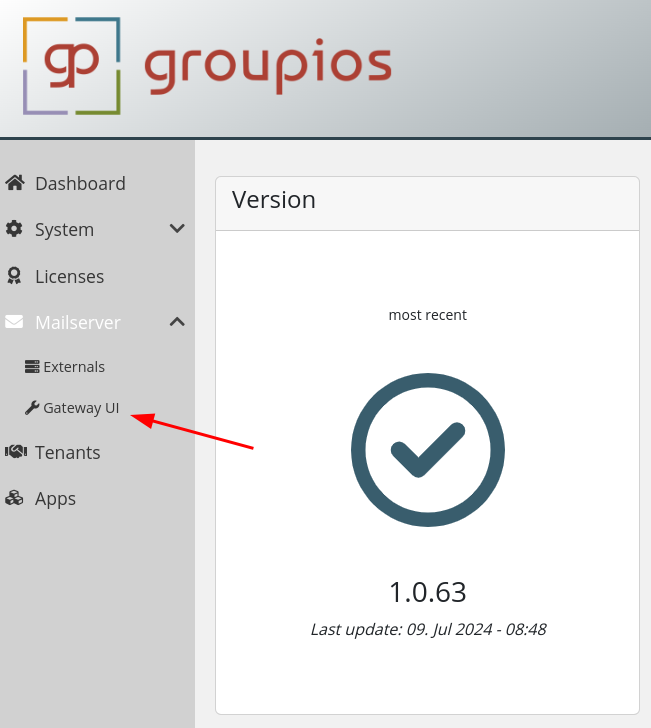
The UI for the gateway configuration options is accessible through the sidebar in the management UI, as shown in the picture below:
Set Next-Hop Destinations
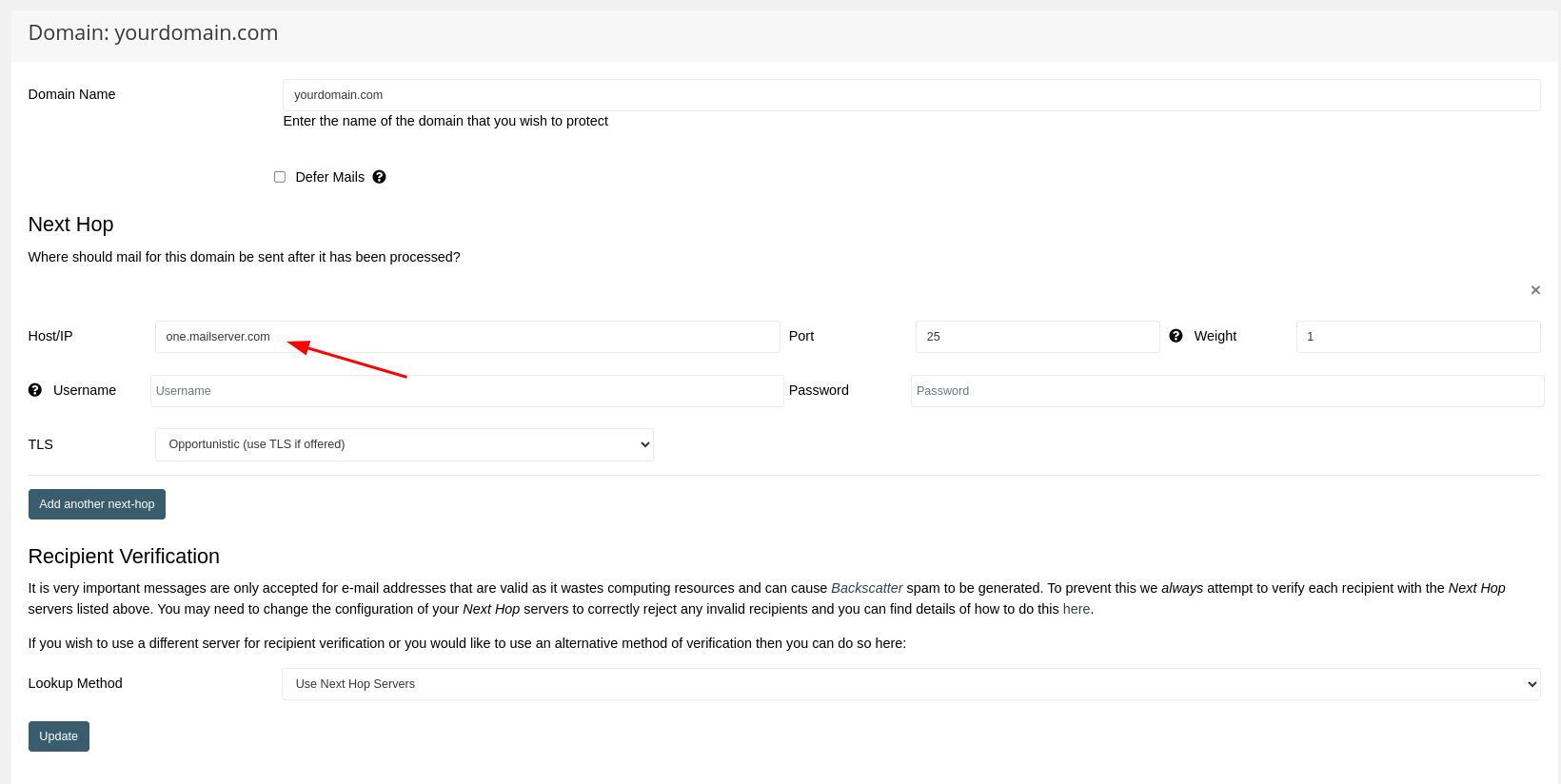
In case you are using the groupios gateway without groupware, you may want to change the configured next hop locations.
Open the according configuration as shown in the picture below.
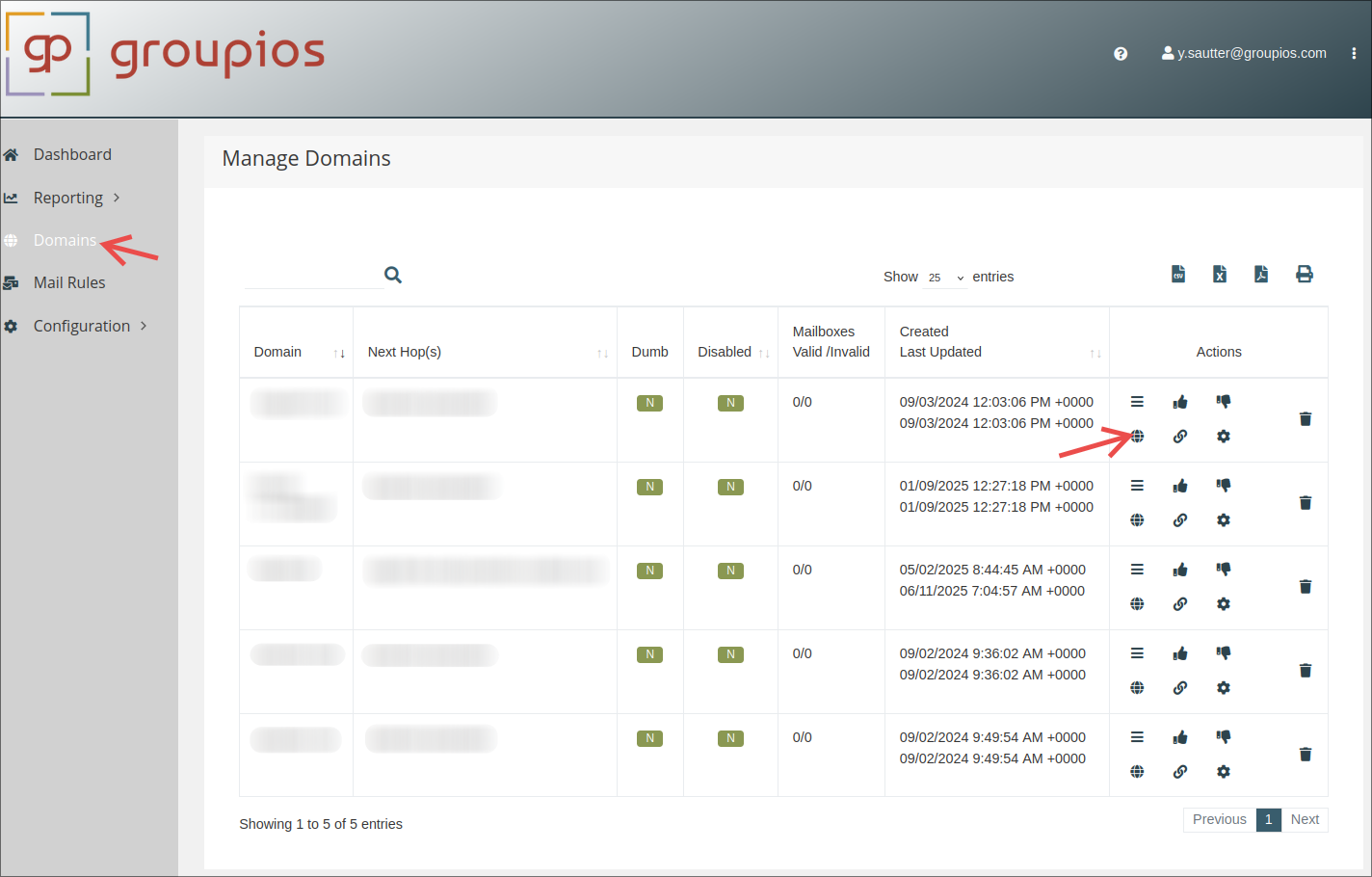
This will get you to a new view, which allows you to edit the next hop configuration of this specific domain.
Mail Core Configuration
Listen on ports
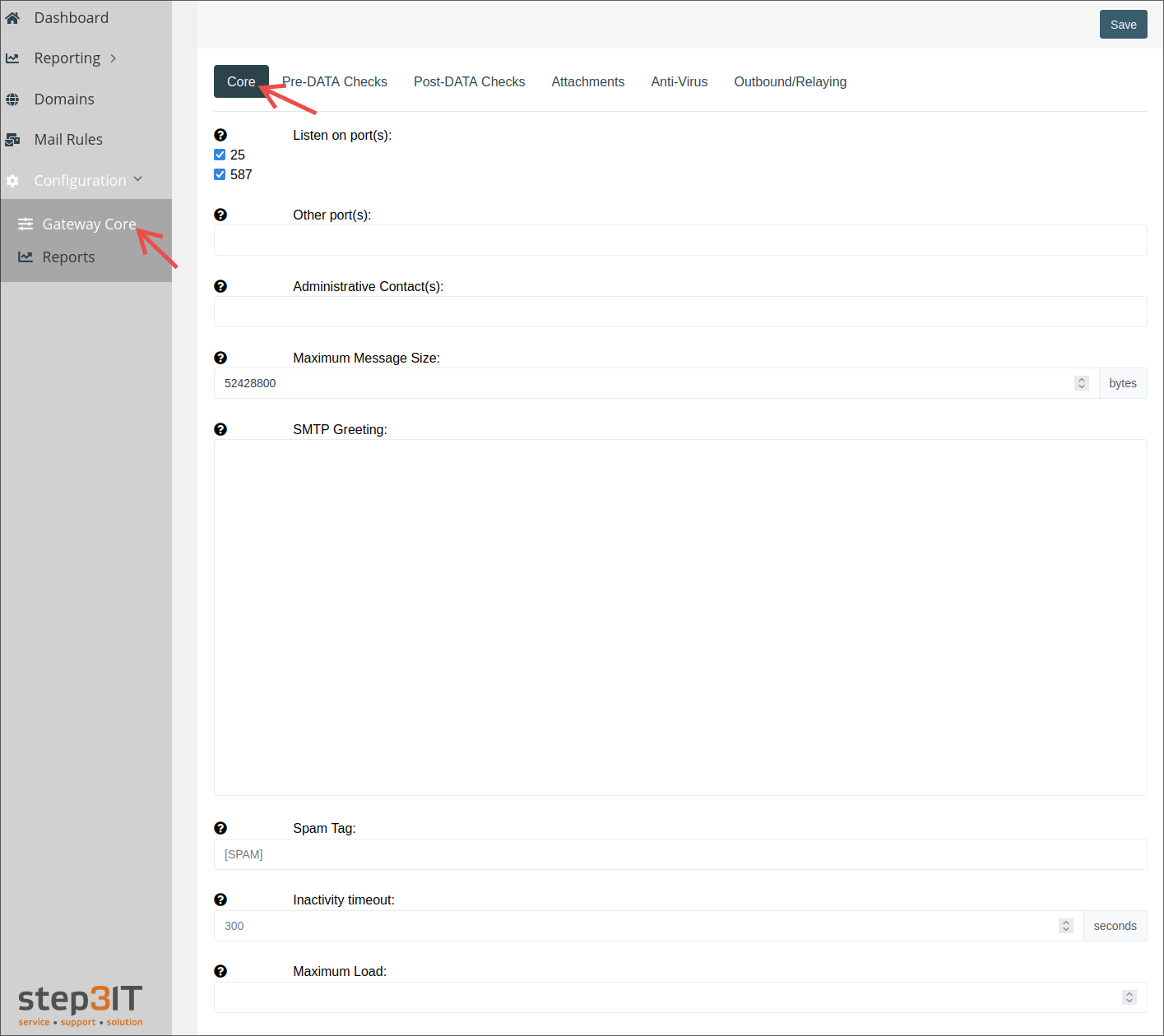
The checkboxes specify which TCP ports that groupios Secure Gateway should listen on. Port 25 must be enabled if you want to receive external e-mail.
Port 587 is used for SMTP Submission and requires that anyone using that port use TLS (STARTTLS) and SMTP Authentication before they are allowed to send messages. It is typically enabled if you want to allow email clients (MUA) like Outlook or Thunderbird, for example to use groupios Secure Gateway as a relay server
Other ports
This allows for a comma separated list of other TCP ports to listen on. Typically, this would be used if you needed to support clients who cannot connect on port 25 or 587 (e.g. because the ports are blocked by their ISP or corporate firewalls).
Port 465 (SMTPS) has a special meaning and if specified will use SSL encryption, but this requires a SSL/TLS certificate to be specified.
Administrative Contacts
This is a comma separated list of email addresses that should receive administrative messages from any of the groupios Secure Gateway systems. This means that any email directed to postmaster, abuse, security, noc or root sent to the hostname of the groupios Secure Gateway machine and will include any messages from any of the groupios Secure Gateway cron jobs will be sent to all of the contacts specified here. If the list is blank, then any of these messages are rejected with the message ‘No administrative contact configured’.
Maximum Message Size
This specifies the maximum allowable message size globally. You may specify lower limits per host, sender or recipient using the Maps.
If a message exceeds this size then the message is rejected with Message too big!
SMTP Greeting
This allows you to specify a custom SMTP banner message which is sent when a host initially connects to groupios Secure Gateway.
The default banner looks like this:
220 smtp.groupios.com ESMTP groupios ready (A42B3586-E9EA-438A-A25A-B69CC1A34301)
The hostname, ESMTP and the Session ID (shown in brackets) are always sent on the first line as the hostname and ESMTP are required in the SMTP protocol and the Session ID aids debugging.
Inactivity Timeout
The maximum idle time of a connection (e.g. where no data is sent) before the connection is forcefully closed with a ‘421 timeout’ message. The default is 300 seconds (5 minutes), it should not be set to less than 60 seconds
Pre-Data Checks
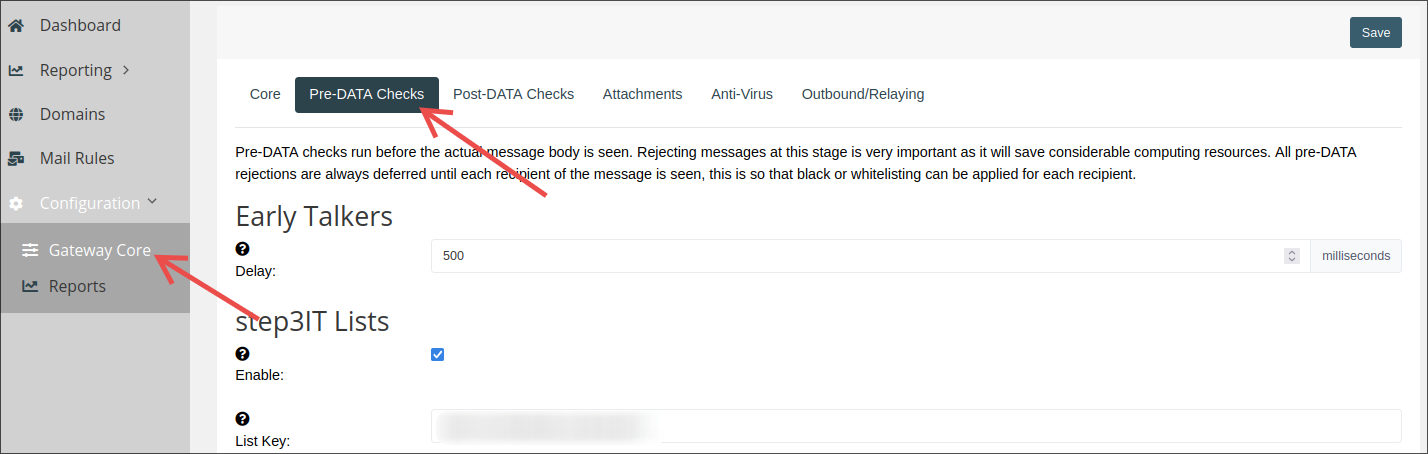
step3IT Filter Lists
step3IT lists are queried using the Domain Name System (DNS) protocol and used to filter incoming mail.
If you own a filter key, enter it in the List Key field, as shown in the picture below.
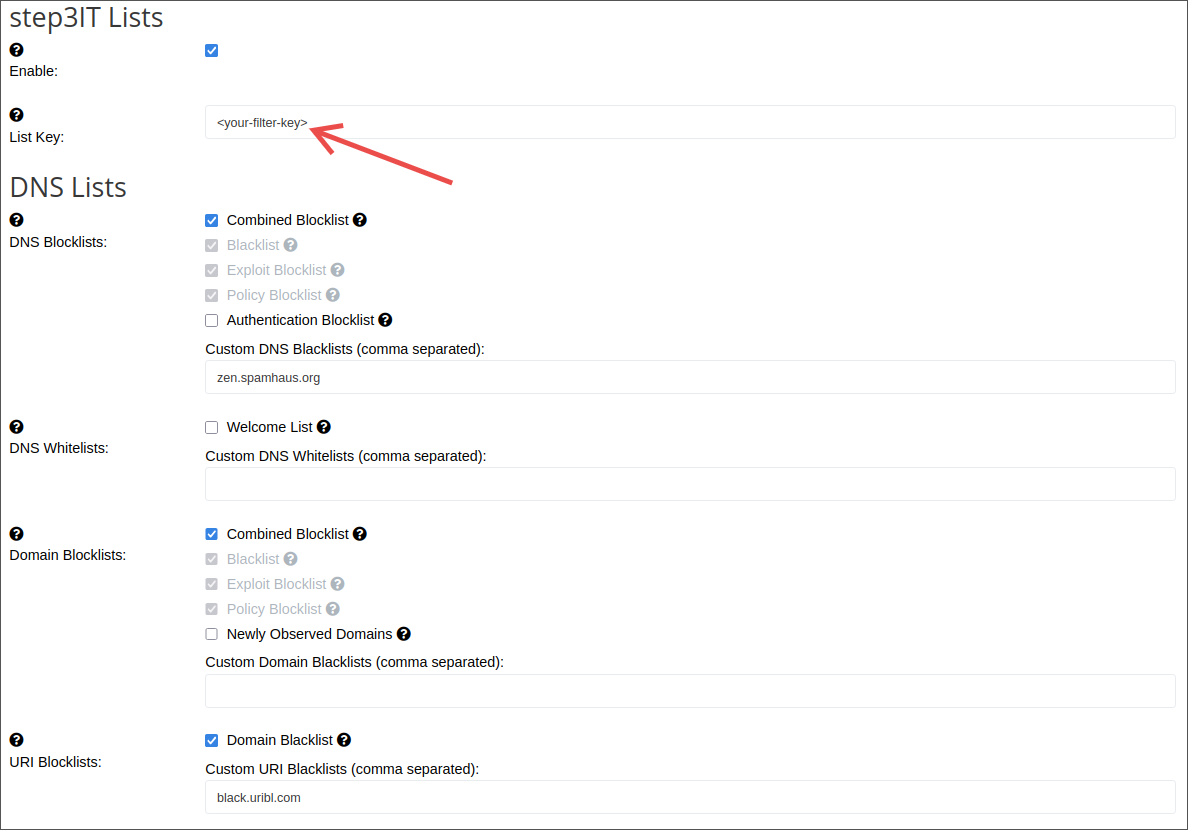
Make sure to save your configuration changes afterward.

DNS Lists
These use DNS lookups to see if an IP address or Domain name is listed.
The result from a DNS list lookup must be in the 127.0.0.0/8 range except for 127.0.0.1 otherwise the result is ignored and the list disabled from further queries.
If a list returns a lookup timeout then the listis automatically disabled and retested every 5 minutes to see if it is working again to prevent the lookups from adversely affecting performance.
DNS Blacklists
Looks up the connecting IP address on the specified lists and rejects the message if the host is listed.
If step3IT filter lists are enabled, the following checkboxes are available:
- Combined Blocklist: aggregated list from Blacklist, Exploit Blocklist and Policy Blocklist
- Blacklist: IP Spam Blocklist
- Exploit Blocklist: IP Exploit blocklist listing IPs that show suspicious behaviour
- Policy Blocklist: IP Policy Blocklist listing IP addresses that should not connect directly
- Authentication Blocklist: a subset of the Exploit Blocklist with shorter listing duration to prevent DHCP-related false-positives
The recommended custom lists to use here are:
- zen.spamhaus.org
- cbl.abuseat.org
- b.barracudacentral.org
DNS Whitelists
Looks up the connecting IP address on the specified lists and whitelists the message through all pre-DATA tests only, post-DATA content checks are still run and the message can still be rejected.
If step3IT filter lists are enabled, the following checkboxes are available:
Welcome List: an aggregated list of multiple whitelist sources (including DNSWL) The recommended custom list to use here: list.dnswl.org.
Note
DNSWL is not free for commercial use, you must pay for a feed if you wish to use it for an extended period.
It is however included in the step3IT Welcome List
Domain Blacklists
Looks up the full domain name of any rDNS names, HELO domain, envelope from domain, Message-ID header domain or any domains found within the message body and rejects the message if the domain is listed.
If step3IT lists are enabled, the following checkboxes are available:
- Combined Blocklist: aggregated list from Blacklist, Exploit Blocklist and Policy Blocklist
- Blacklist: IP Spam Blocklist
- Exploit Blocklist: IP Exploit blocklist listing IPs that show suspicious behaviour
- Policy Blocklist: IP Policy Blocklist listing IP addresses that should not connect directly
- Newly Observed Domains: a list of newly observed domains which is useful for scoring
The recommended custom lists to use here:
- dbl.spamhaus.org
- fresh.spameatingmonkey.net
Note
Spamhaus is not free for commercial use, you must pay for a feed or the query service if you wish to use it for an extended period.
URI Blacklists
Looks up the domain name stripped to the organization boundary of any domains found in the message body only and rejects the message if the domain is listed.
If step3IT lists are enabled, the following checkboxes are available:
- Domain Blacklist: list of domains and IP addresses found in message body
The recommended custom lists to use here:
- black.uribl.com
- multi.surbl.org
Note
URIBL and SURBL are not free for commercial use, you must pay for a feed or the query service if you wish to use it for an extended period.
Post-Data Checks
Mark-From header
Why is Rewriting the Sender Address Useful?
This feature provides crucial transparency about an email's true origin, significantly boosting your security.
Technically speaking, every email has two sender addresses:
- The Visible Sender (
From:header): This is the address displayed directly in your email client (e.g.,newsletter@my-company.com). This address can easily be forged. - The Technical Sender (Envelope Sender): This is the address the sending server actually uses for delivery (e.g.,
mail123@shipping-provider.com). This is much harder to fake.
If these two addresses do not match, our system makes this discrepancy visible to you.
- See the truth: It reveals who technically sent the email, not just who it claims to be from.
- Get a warning: It encourages you to take a closer look and verify the sender's trustworthiness.
- Detect phishing: It makes it much easier to spot phishing attempts where an attacker impersonates a trustworthy person or company.
Example of a Legitimate Case
Our company sends its newsletter through a specialized service provider. You will see the sender displayed like this:
Our Newsletter via mail-service.com
This is completely legitimate and secure. It simply means that we (Our Newsletter) are using a technical service provider (mail-service.com) to send mass emails.
Example of a Possible Fraud Attempt
An attacker tries to impersonate your bank. You might see a sender like this:
Your Bank via strange-domain.net
You should be extremely cautious here. The display "via strange-domain.net" is a major red flag, revealing that the email does not originate from your bank's official servers.