Webmail
The groupios WebApp is a fully featured mail client with email, calendar, contacts, tasks and notes functionality that can be used from a modern web browser.
First login
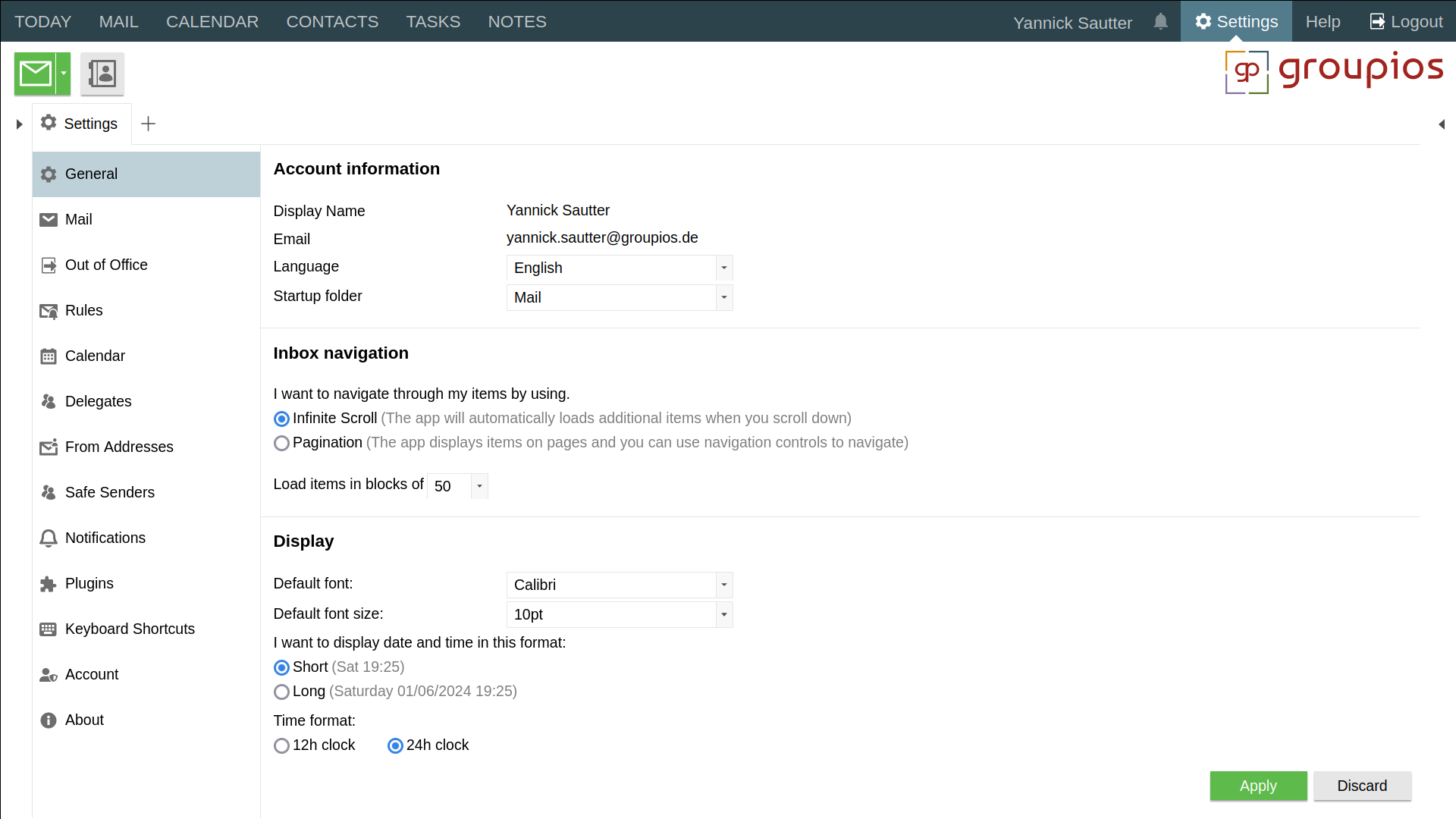
The first time you log in, you will be greeted by the welcome screen shown below.

Here you can configure frequently used settings such as display language, startup folders and calendar settings. The administrator may have set some defaults for you that are not shown in the screenshot.
Areas of the webmail client
The groupios WebApp is divided into the following sections:
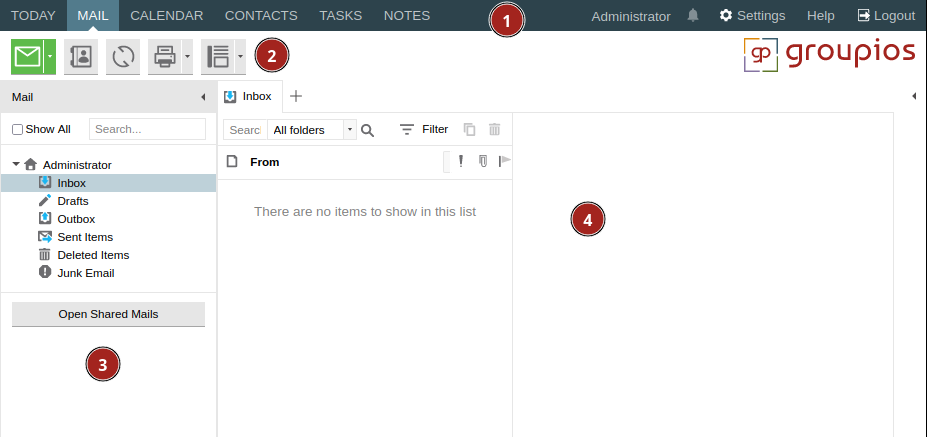
- The shortcut bar - On the left side it contains the buttons for the different "contexts", such as "mail", "calendar", etc. On the right it shows the name of the user logged in, a bell icon for any reminders that may be active, and a button to access the preferences, this documentation, and to log out.
- Main Toolbar - This toolbar contains buttons appropriate to the current context. Some buttons offer additional options through a drop down menu.
- Folder Navigation Pane - Provides an overview of the folders that are part of the user's mailbox, as well as public folders and any additionally opened shared folders.
- Main Window - Displays the main content. Use the search box to quickly find items in the current context.
Working with mail
The groupios WebApp provides mail functionality similar to Microsoft Outlook. This includes features such as follow-up flags and categories.
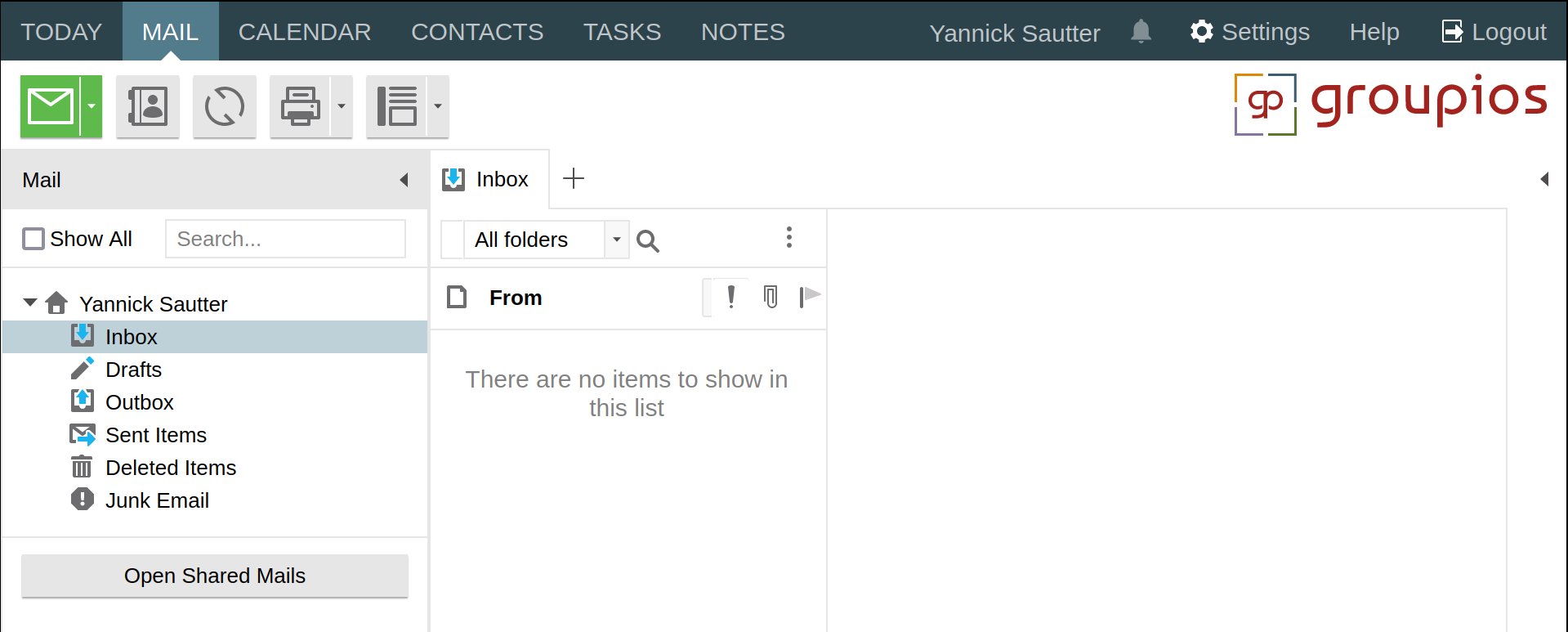
Compose a mail
To start composing a mail, click on the highlighted letter icon which will open a new mail tab within the groupios WebApp. While the mail tab is open, the user can still use the groupios WebApp as normal and view incoming mail, switch to the calendar and more.
To make it easier to switch between different windows on the same computer, the email editor can even "pop out" into a separate window.
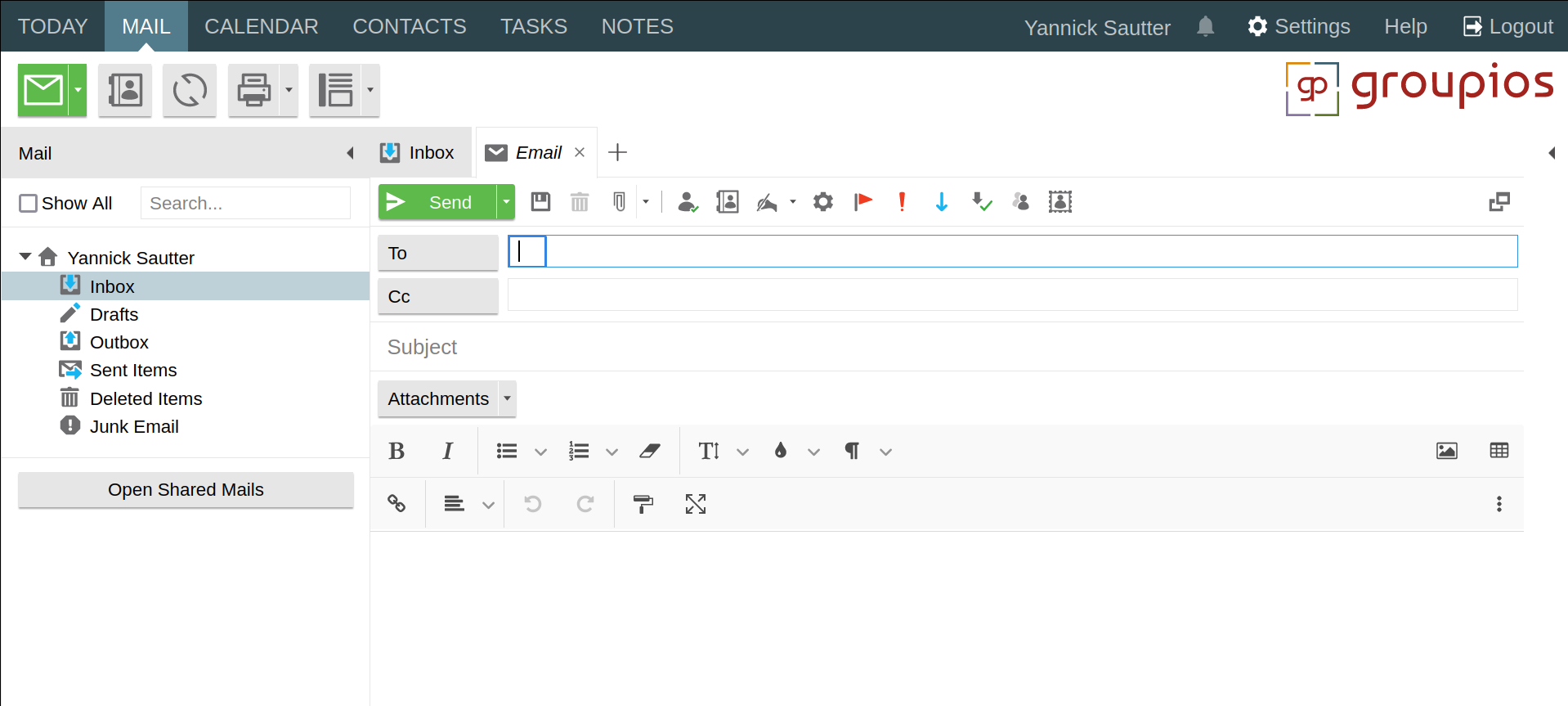
The groupios WebApp provides a rich text editor for composing mails using common formatting options, as well as the ability to insert images and tables.
As you type recipients into the To, Cc or Bcc fields, the application will automatically try to complete addresses based on previous recipients. In addition, once the full address or recipient name has been entered, the editor will look up any matching addresses from the Global Address Book (GAB) and the Contacts folder.
Note
The Blind Carbon Copy (Bcc) field and the From field are hidden by default, but can be enabled by clicking on the corresponding icon in the mail editor.
Calendars
Working with the calendar
The groupios WebApp calendar has many advanced features such as daily, workweek, weekly, monthly and list views. The ability to open other users' calendars (depending on your permissions). And of course the ability to create events with reminders, resources and recurrences.
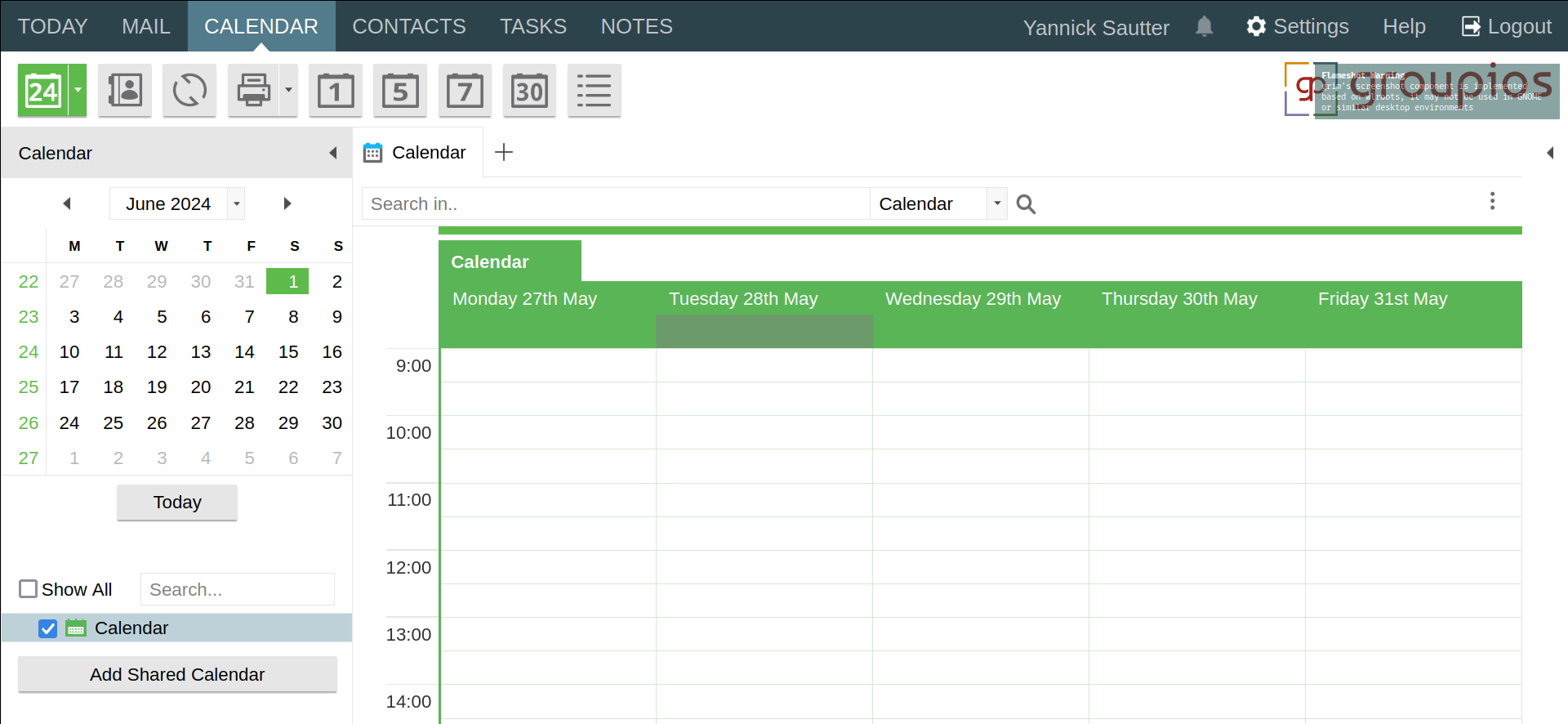
Schedule Meetings
New meetings and appointments can be created from the main toolbar or by dragging an appointment directly onto the calendar view.

Through the "Scheduling" tab, users can improve the scheduling process by seeing a user's availability before sending a meeting request.
Contacts
The groupios WebApp provides the ability to work with contacts and local "distribution lists".
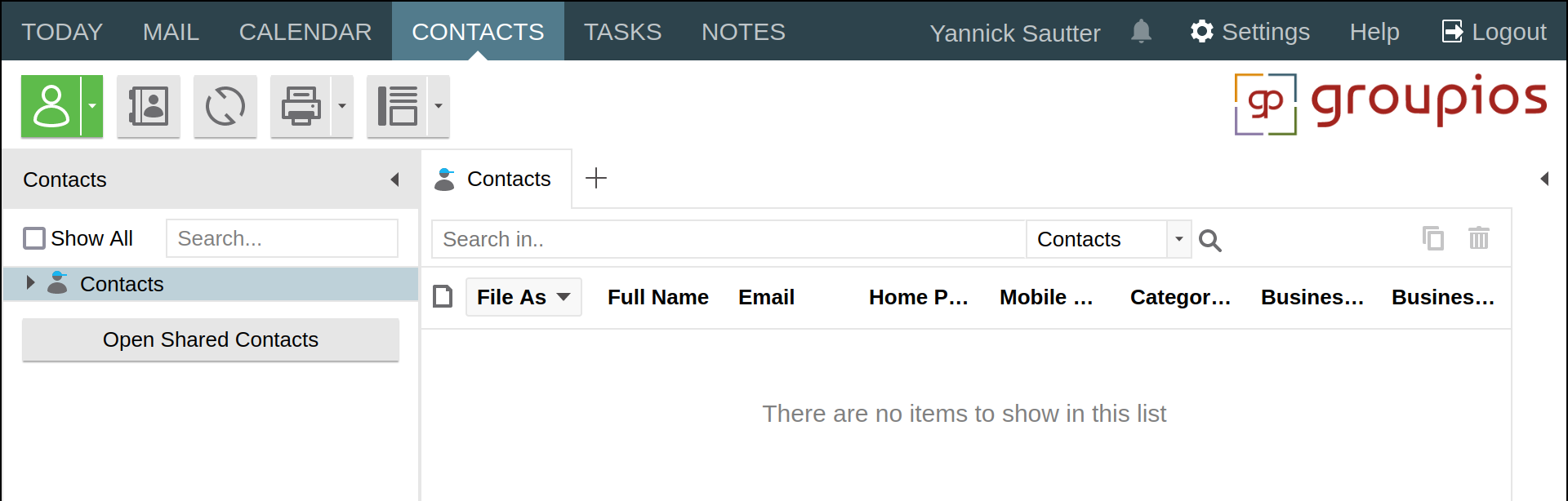
Distribution lists make it easy to send emails to a predefined group of recipients.
Tasks
The groupios WebApp task context provides the user with an overview of current tasks.
By default, the user has two folders for managing tasks. The Tasks folder, which contains the actual tasks, and the To-Do List, which is a combined view of tasks and other items marked for follow-up.
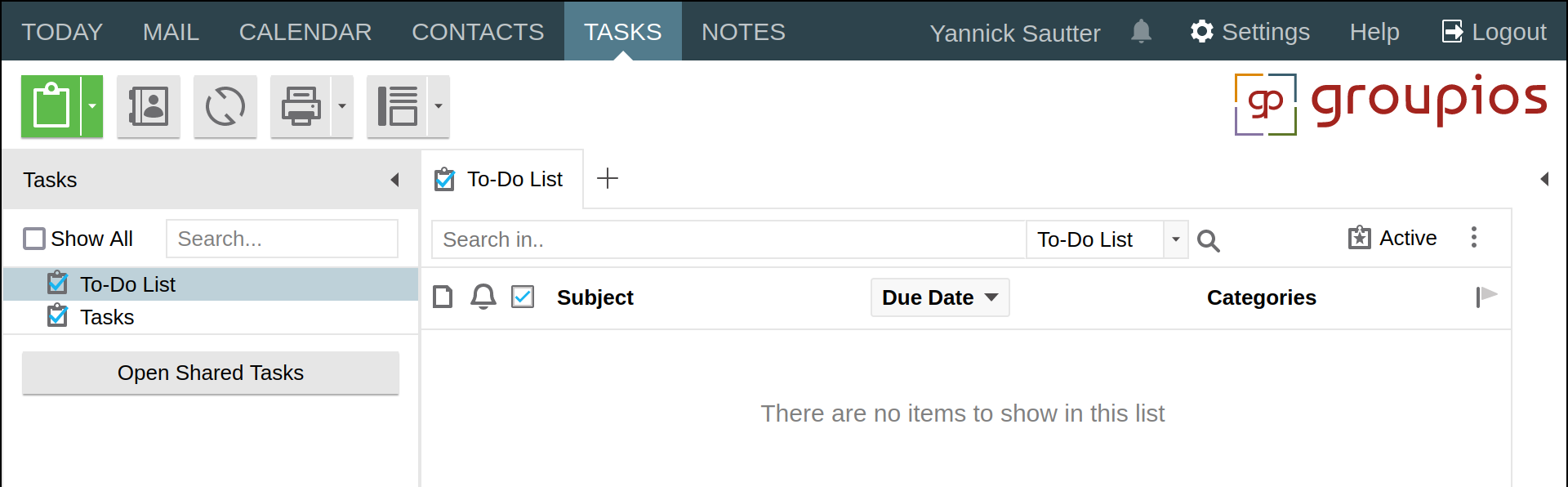
Tasks can be assigned to other users and are automatically marked as done through meeting request-like messages.
Notes
The groupios WebApp provides the ability to work with simple sticky notes.
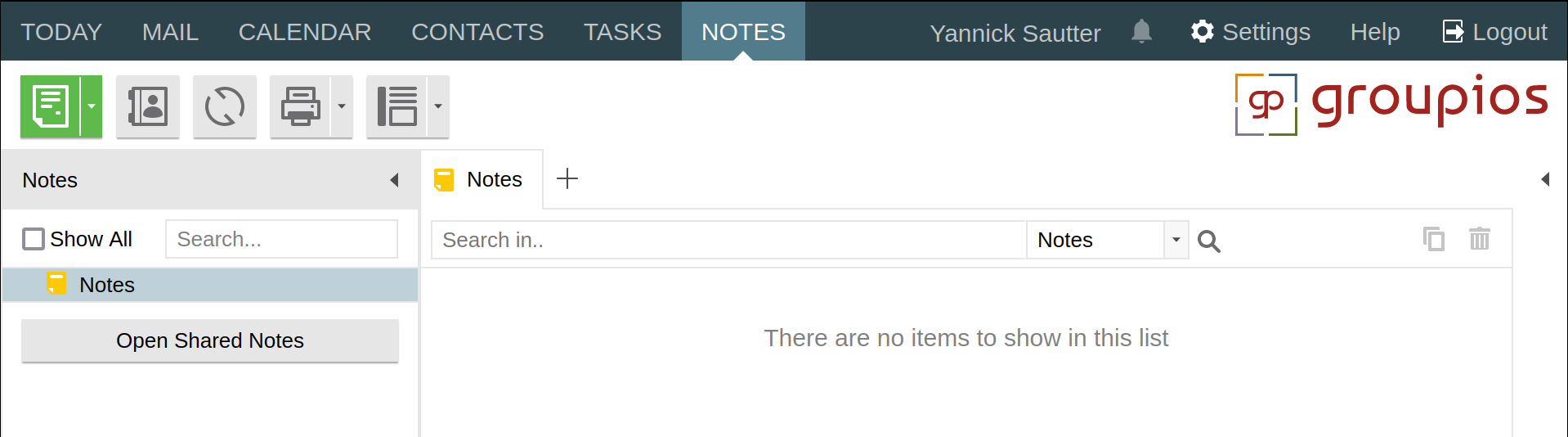
Notes are plain text and are assigned a colour.
Incompatible
As of writing this the data types used for storing notes between Outlook and groupios WebApp are not compatible. When using notes please use them only with either one, as otherwise changes may get lost.
Sharing
Working with shared folders
To share a folder, simply right-click on the folder and select "Share folder...".
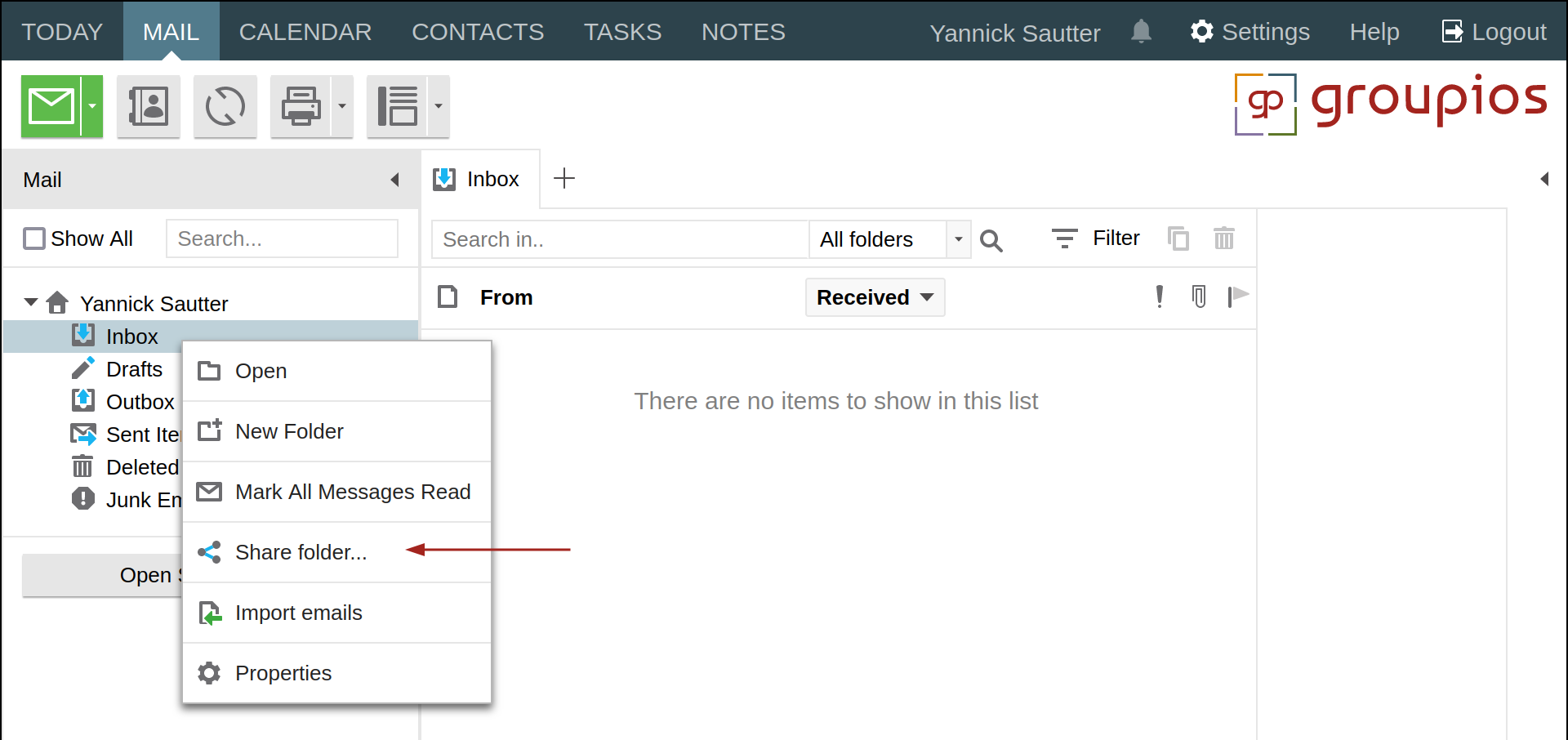
This will open a new dialogue where you can configure users and groups with different access "profiles" using the "Add" button.
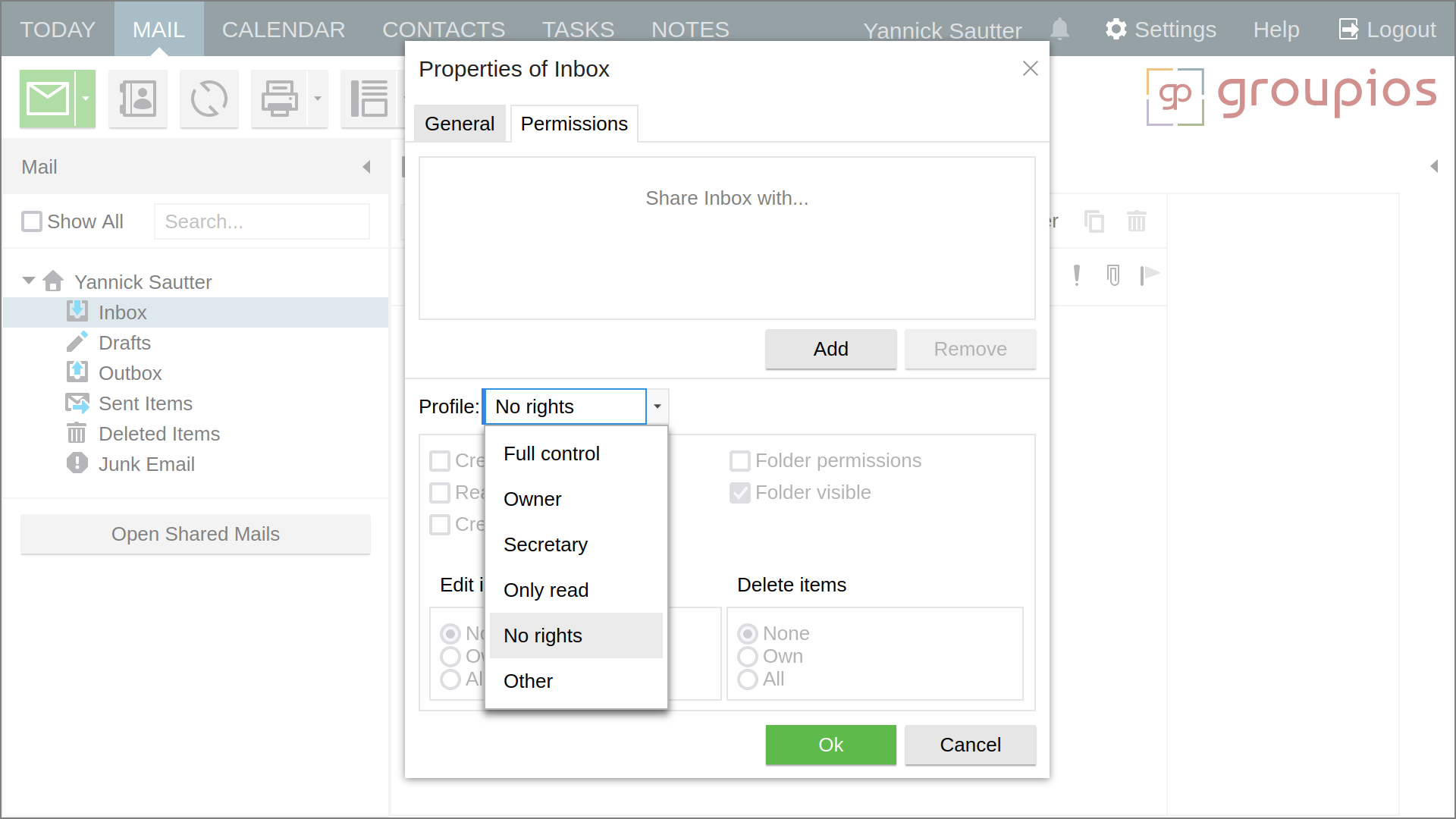
Permissions set for a folder are automatically inherited by its subfolders.
Opening a shared folder
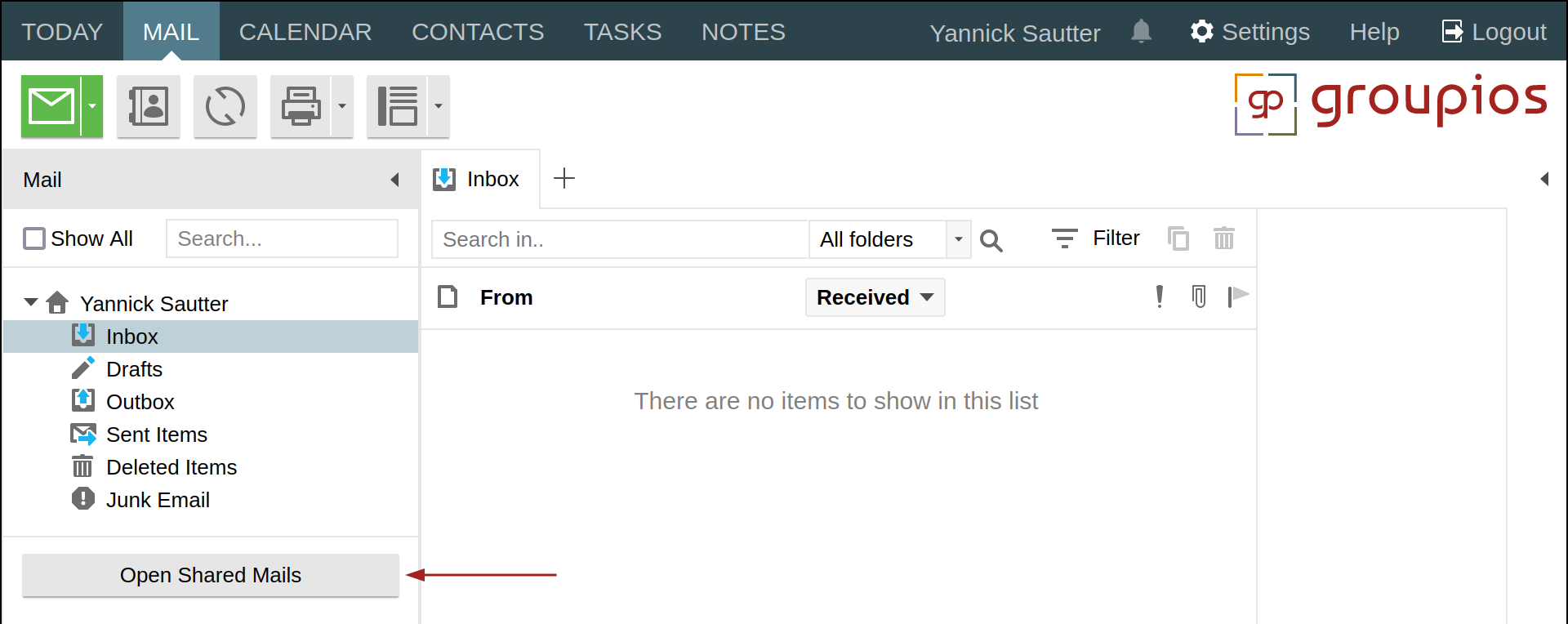
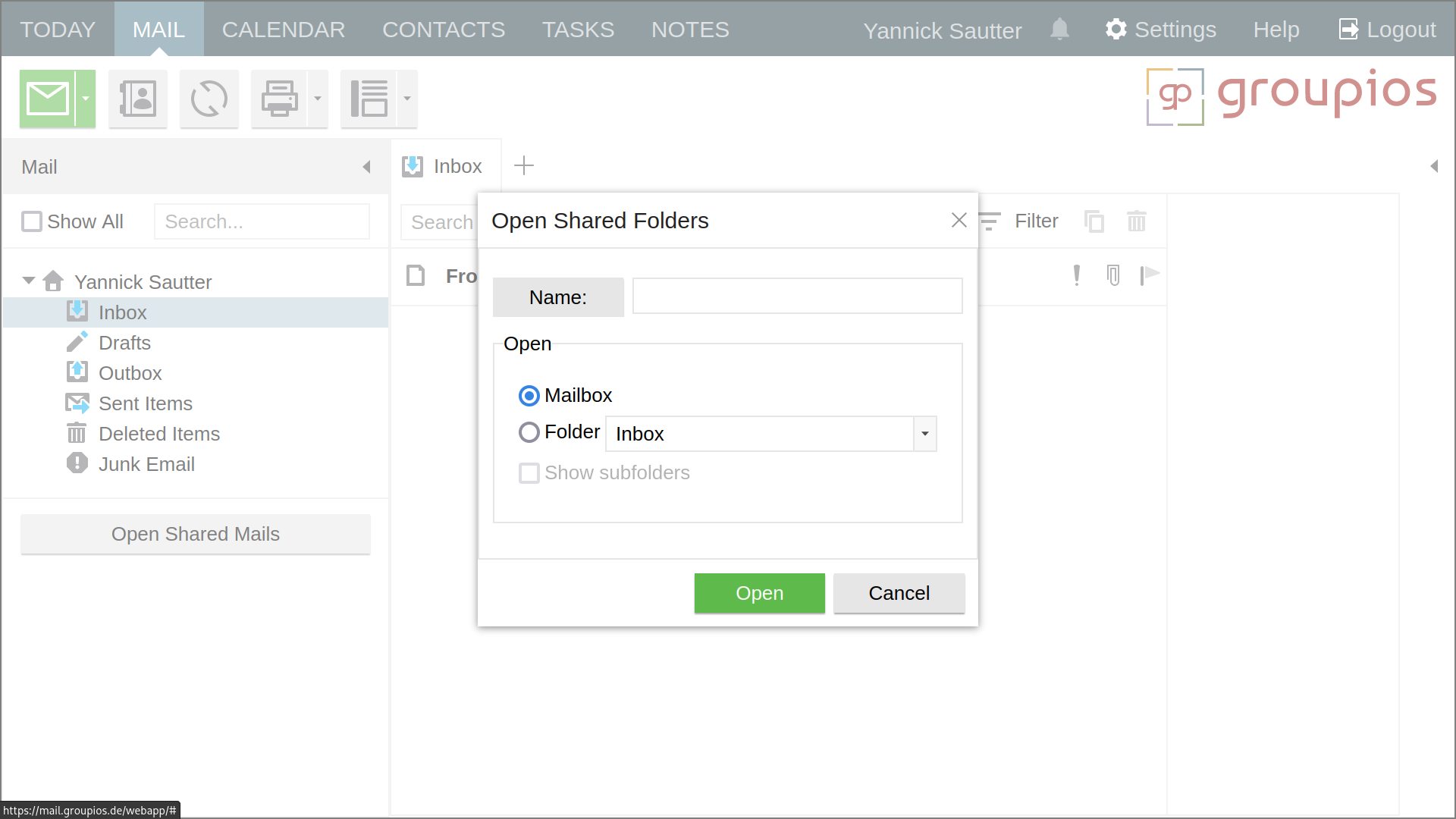
Shared folders can be opened by clicking on the "Open Shared [..]" button below the folder navigation pane.
Delegates
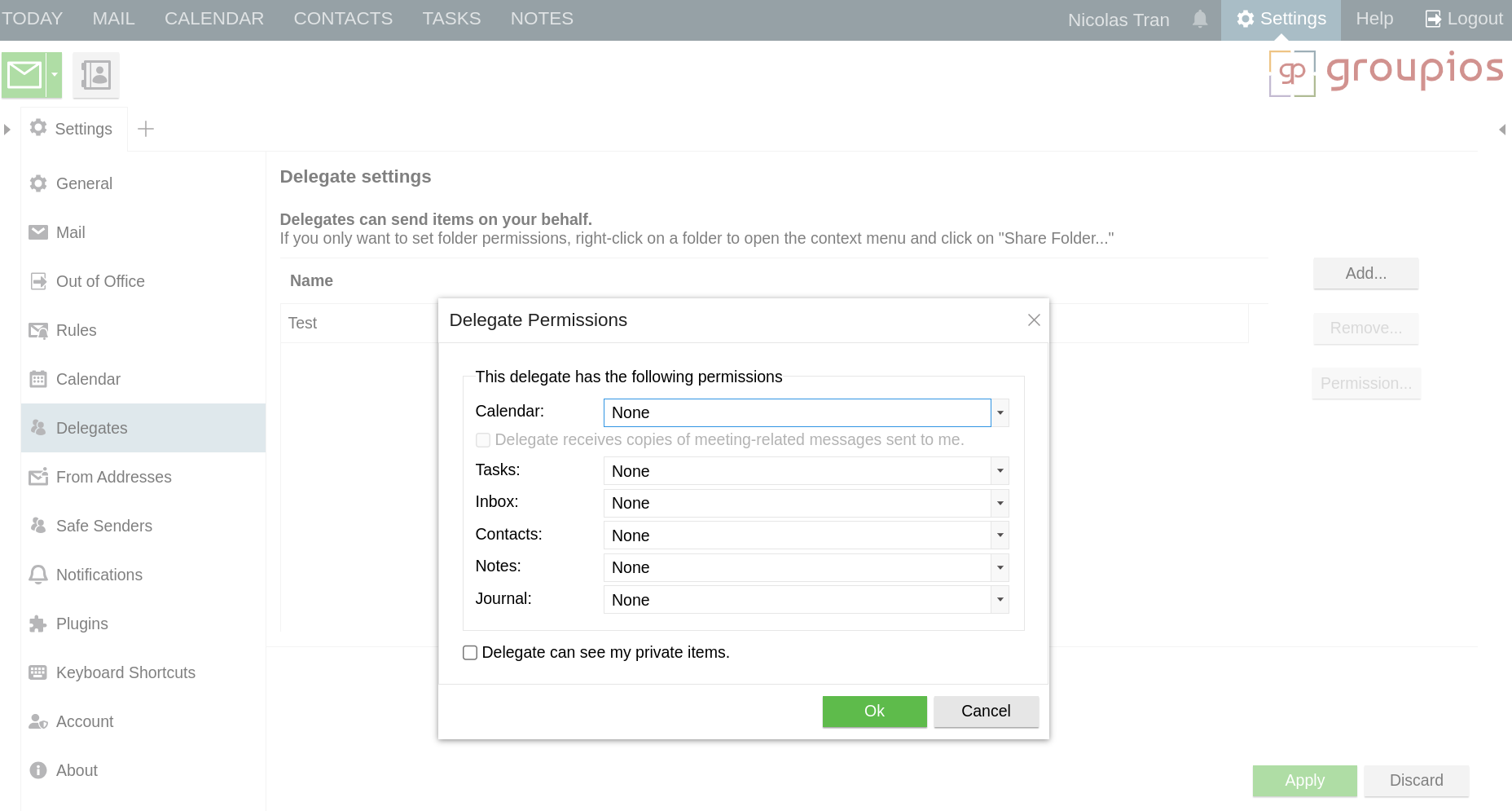
In case you want to permit other users to send mails on your behalf, you can set up delegates.
Delegates may also be permitted to manage the calendar, contacts and more.
Settings
The groupios WebApp allows you to customise configuration settings regarding the display of mail, the calendar, as well as setting up "out of office" messages, mail rules and delegates from its settings context.
Sender Addresses
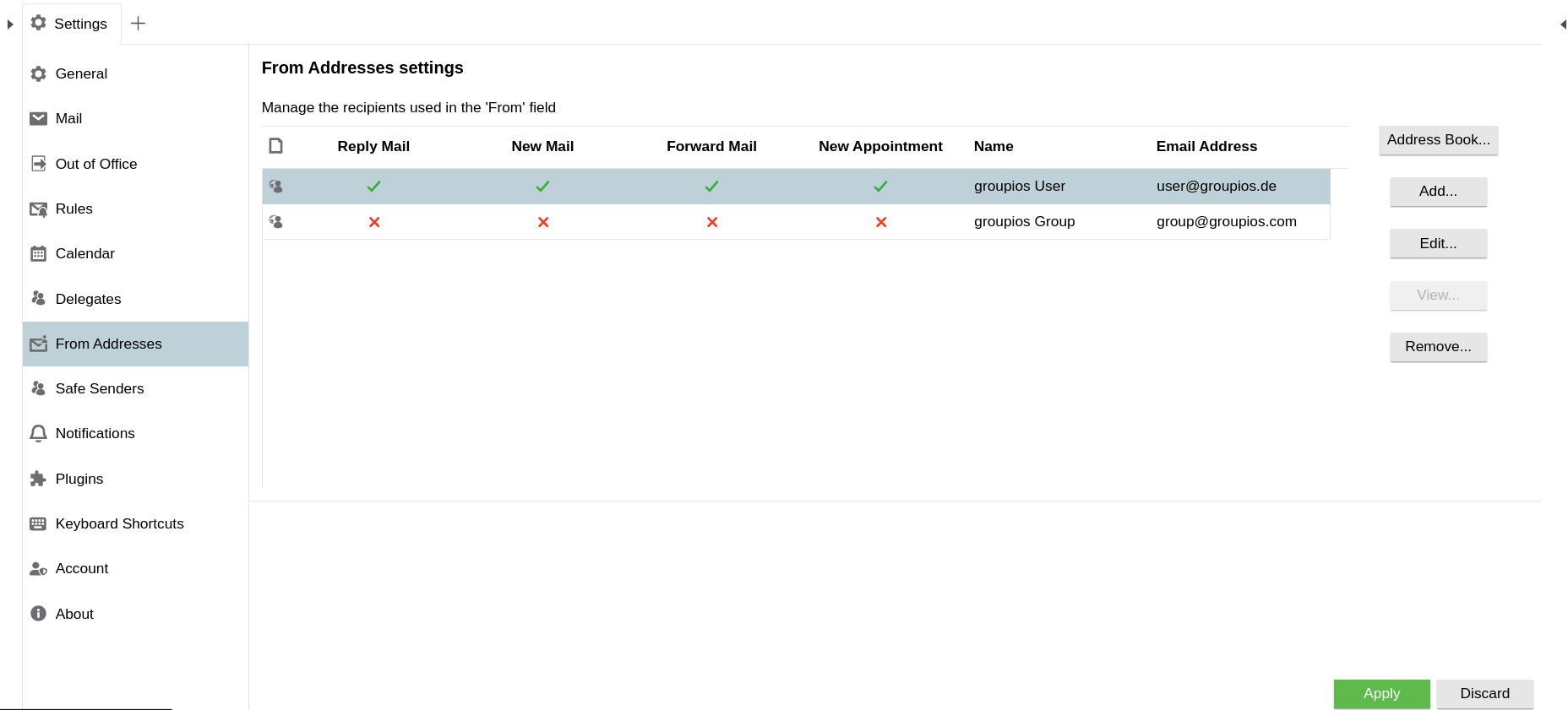
The sender address is the email address from which the message is sent. It is displayed in the "From" field of the email header. This address identifies the sender and allows the recipient to reply or contact the sender if needed.
If you are allowed to send from different addresses than your default address, you can configure them as shown in the image below.
Searching
Searching for items in your mailbox
The groupios WebApp has a powerful search that supports both prefix searches and search operators.
| Example | Explanation |
|---|---|
cheese |
Finds all items containing the word "cheese" |
cheese* |
Also finds words that begin with "cheese", such as "cheeseburger" |
cheese NOT burger |
Finds all items containing the word "cheese" but not the word "burger" |
cheese OR burger |
Finds all items with the word "cheese" and all items with the word "burger" |
cheese AND burger |
Finds all items with both the word "cheese" and the word "burger" |
Note
Complex expressions such as burger AND (cheese OR bacon) are also possible.
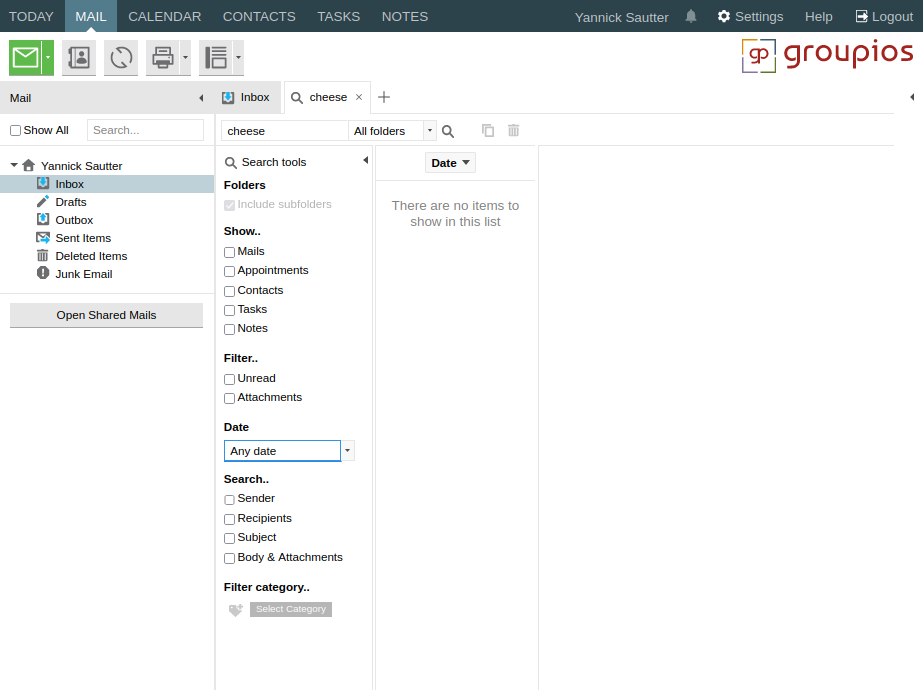
After performing the initial search, users can further filter the results to, for example, search only in mails or contacts, or show only unread mails.